CurseForge
Step by step guide on how to install our Official Modpack using the CurseForge Launcher
On this page
GGPlays modpack: The download link is being prepared. Use the GGPlays join page for the confirmed pack and connection details. Launcher screenshots below illustrate the shared setup.
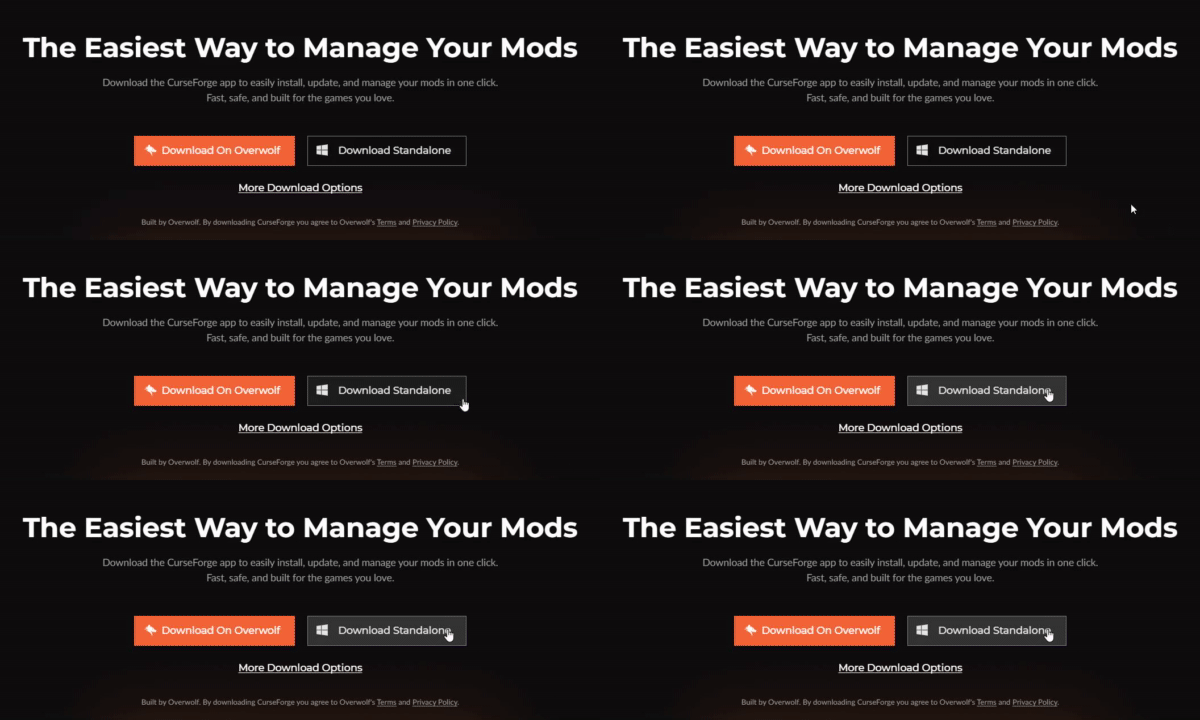

Setup CurseForge
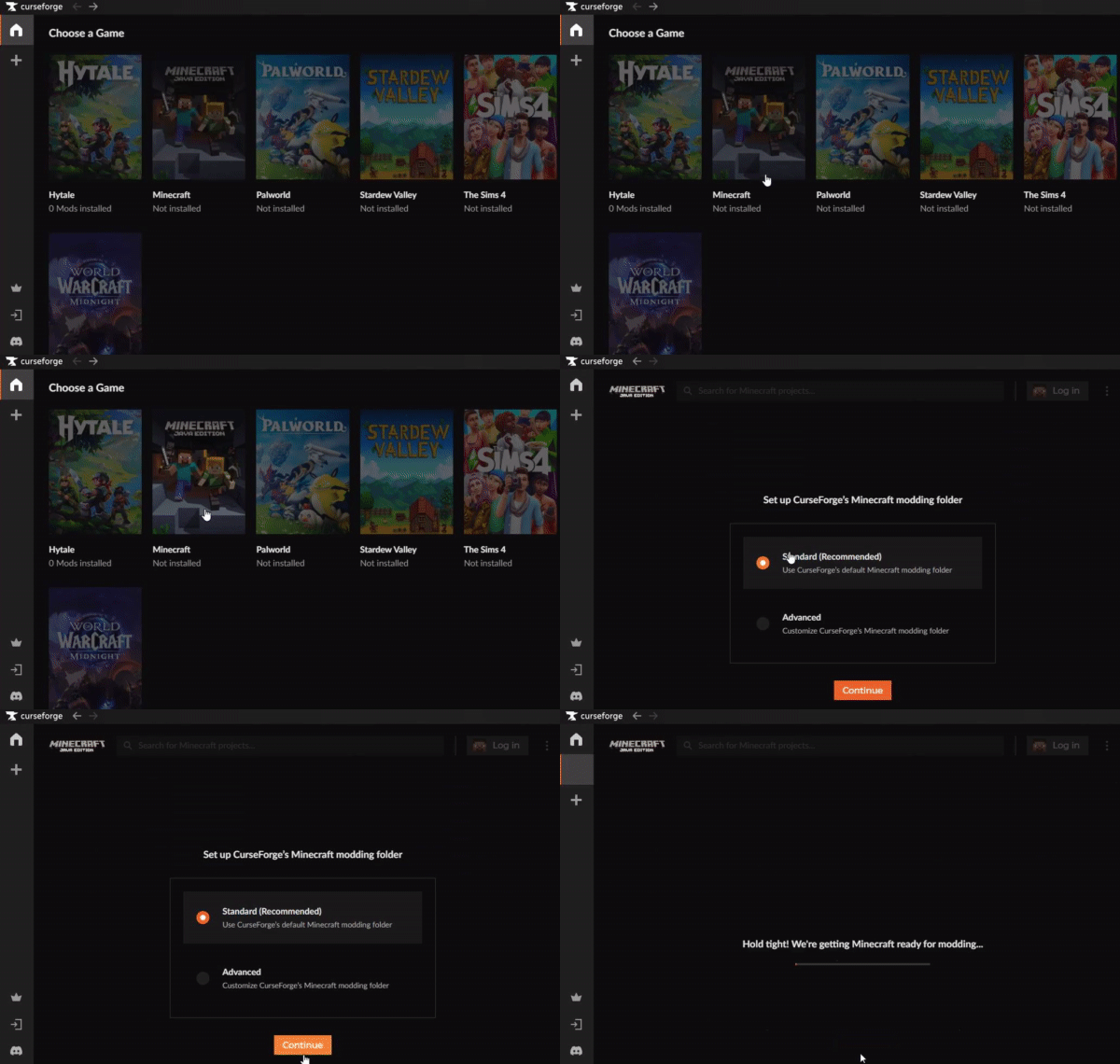
Select Minecraft, then click Continue
Login with your Microsoft Account
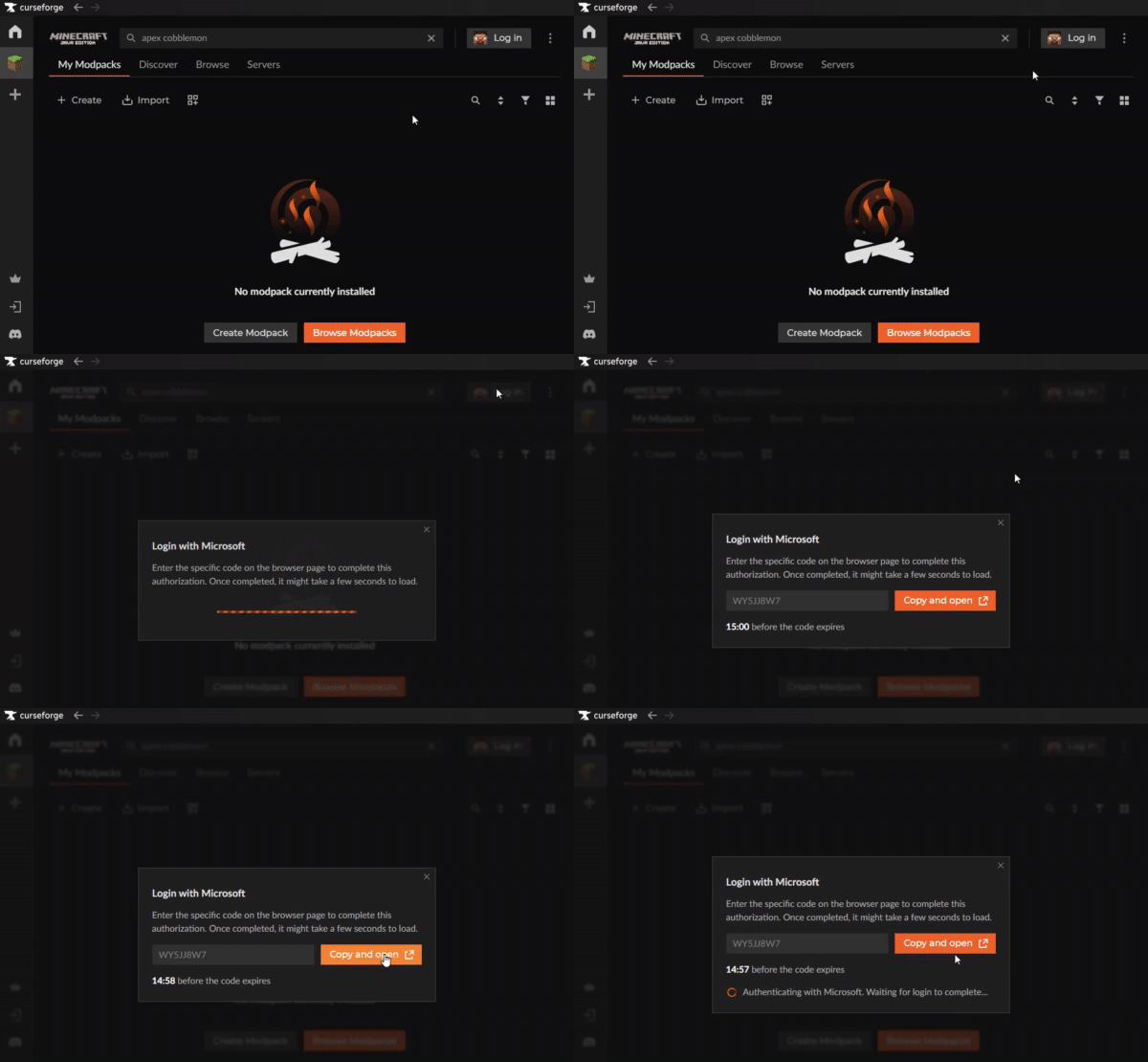
Click the Log in button in the top right, then follow the prompts
Install the Modpack
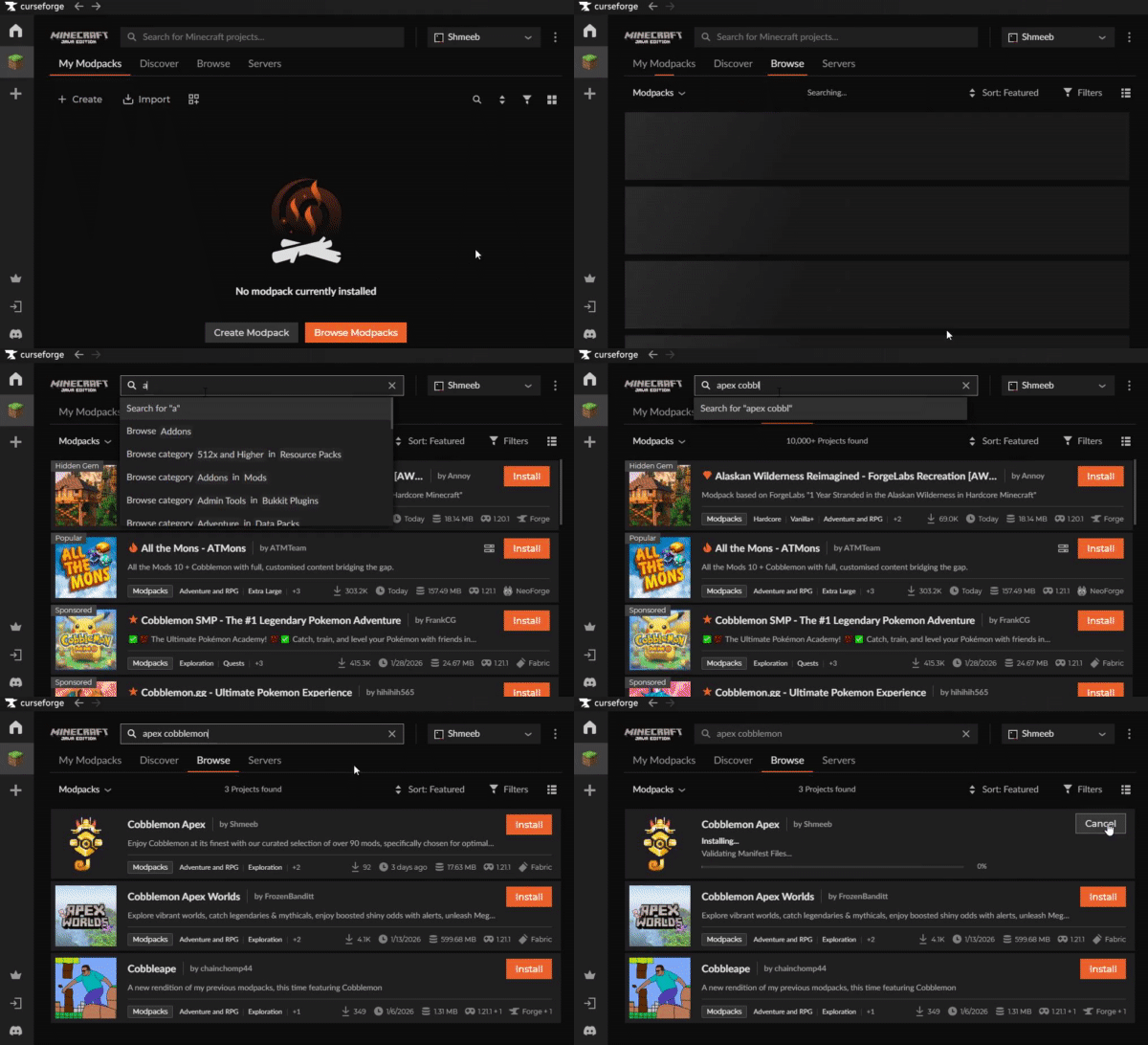
Select the Browse Modpacks button, then search for GGPlays Cobblemon and click the Install button
Launch the Modpack
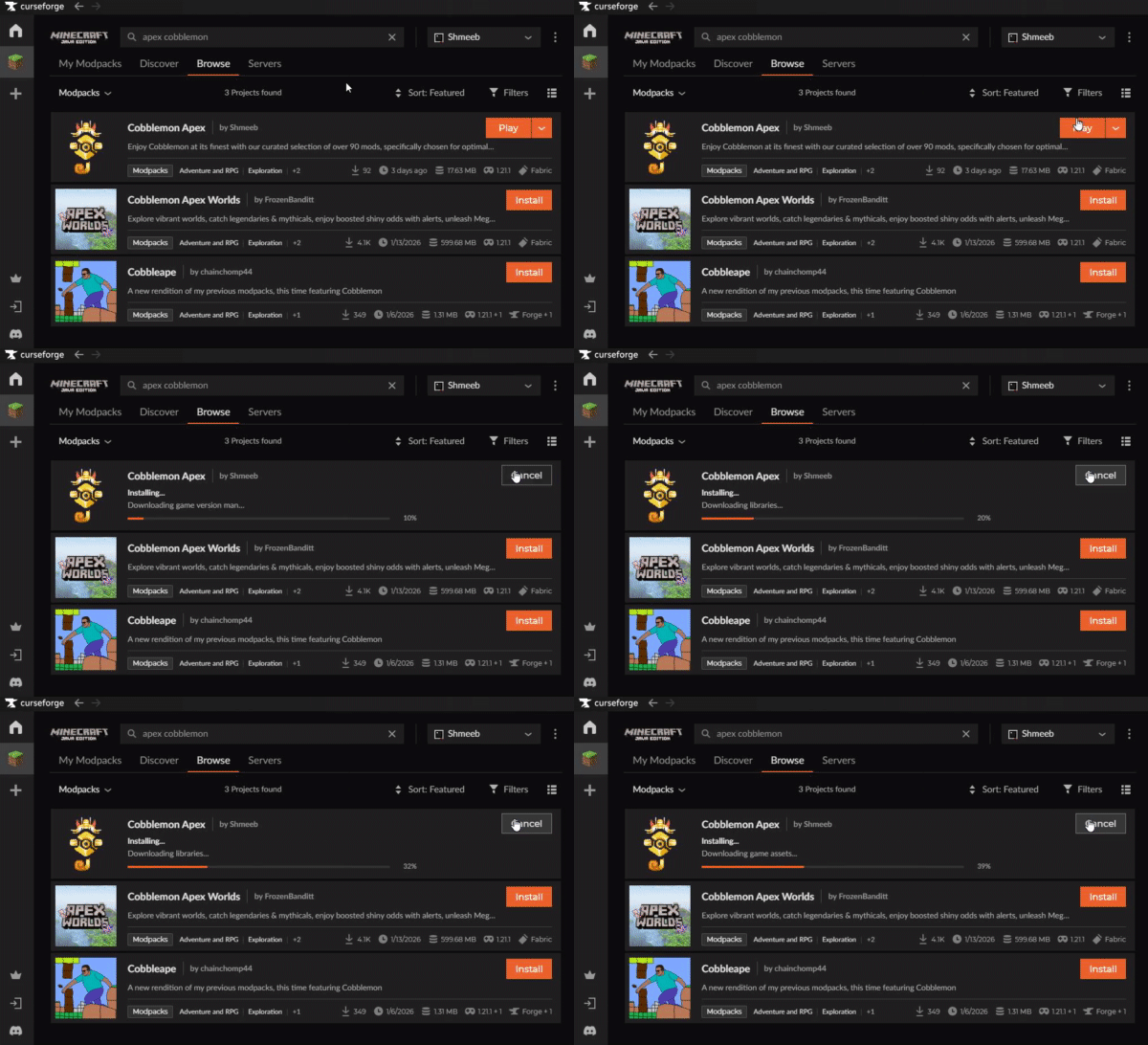
Click the orange Play button
Join Us
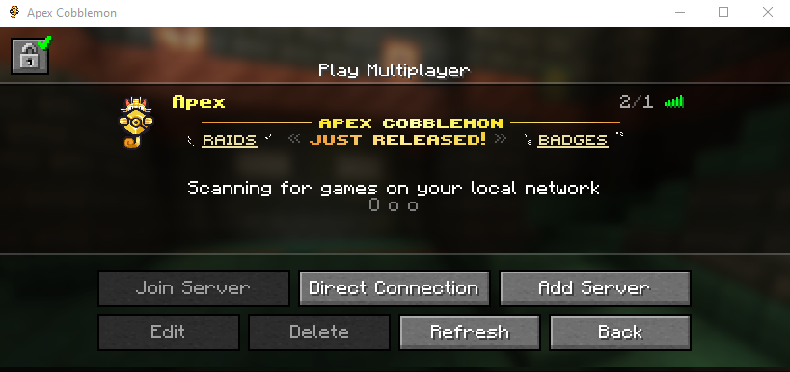
Join our network, it will already be listed and ready to go!
Claim your free Random Shiny
Good luck with your Adventure!
Need Help?

Ram Allocation
Allocating enough RAM helps the modpack run smoothly and can reduce stuttering, long loading times, and memory-related crashes. Follow the steps below to configure your memory settings.
Open the CurseForge App
Select GGPlays Cobblemon
Open the Minecraft tab on the left, then select Cobblemon GGPlays
Open the Memory Settings
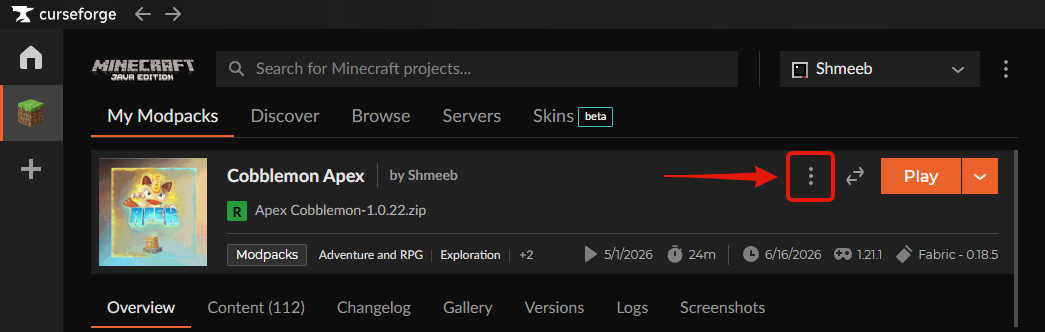
Click the button with 3 dots in the top right, then click Profile Options
Adjust the Memory Settings
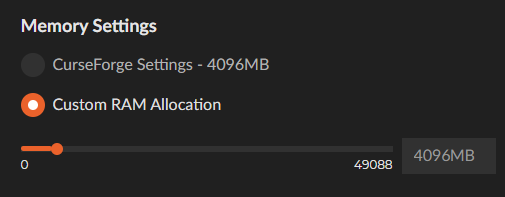
Enable Custom RAM Allocation, then use the slider or text field to allocate at least 4096 MB of RAM (if possible)
Set the Minimum Memory Allocation
Scroll down and add the following argument to the Additional Arguments field:
-Xms4096M
This sets the modpack's minimum memory allocation to 4096 MB. On systems with sufficient RAM, this should generally match the amount selected under Custom RAM Allocation.

Now that the modpack is installed and configured, these resources will help you begin your adventure: